Posts

Showing posts with the label WinCE

WinCE Essentials Volume and File Control

WinCE Essentials 1. How to Enable warning tones, key click and control Volume: It is a general question for a WinCE starter here is the answer. There will be a following registry entry available in the platform.reg file entry. [HKEY_CURRENT_USER\ControlPanel\Volume] "Key"=dword:10000 ; Keyclicks: 1=soft, 0x10002=loud "Screen"=dword:10002 ; ScreenTaps: 1=soft, 0x10002=loud "Mute"=dword:2 ; 7=Enable all sounds (1=Notifications, 2=Apps, 4=Events.) "Volume"=dword:FFFFFFFF ; 0=off, 0xFFFFFFFF=maximum a. "Key"=dword:10000 ; Keyclicks: 1=soft, 0x10002=loud The Possible values of the key clicks sounds are, 10000 - Key click OFF 10001 - Key click Soft (click sound will be minimal) 10002 - Key click Loud (click sound will be maximum) b. "Screen"=dword:10002 ; ScreenTaps: 1=soft, 0x10002=loud The Possible values of the screen Taps sounds are, 10000 - Screen Taps OFF 10001 - Screen Taps...
WINCE 6.0 Build Setup

Image
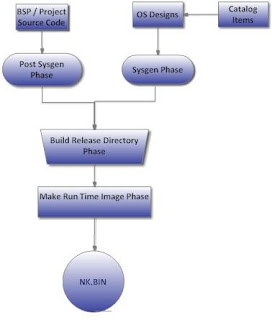
1.      Introduction This article will cover the WINCE 6.0 build process and the process of different build commands which used from Visual Studio2005. WINCE build process contains several phases includes compile the source code, copy modules and files to a common release directory, and create the run-time image. Batch files and build tools, such as the Sysgen tool (Sysgen.bat) and the Make Binary Image tool (Makeimg.exe), automate this process. You can run these tools directly at the command prompt or start the build process in Microsoft Platform Builder for Windows Embedded CE 6.0 R2 (the process of doing this is out of scope of the article, future it can be added). 2.      Scope The Scope of the article is to target mainly towards who wants to know the WINCE6 build process and different build commands available and its step by step process. 3.      Different Phases of Build a)       Co...

CELog and Kernel Tracker

Image
Remote Kernel Tracker 1.    Introduction The Remote Kernel Tracker tool provides a visual representation on a development workstation of OS and application events occurring on a Windows CE–based device.  It shows all processes and threads in the system and when these processes and threads are created, run, stopped, or killed. It also shows when processes and threads are sleeping. This data provides the means for a developer to track system-wide program execution. 2.    Usage The Remote Kernel Tracker tool allows you to view the following in a real-time environment: Thread interactions Internal dependencies System state information System events, mapped onto the thread that was executing at the time they occurred System interrupts All processes and threads in the system, including when these processes and threads are: Created Run Stopped Sleeping 3.    How to enable To enable CE log, in OS design property page, under build...